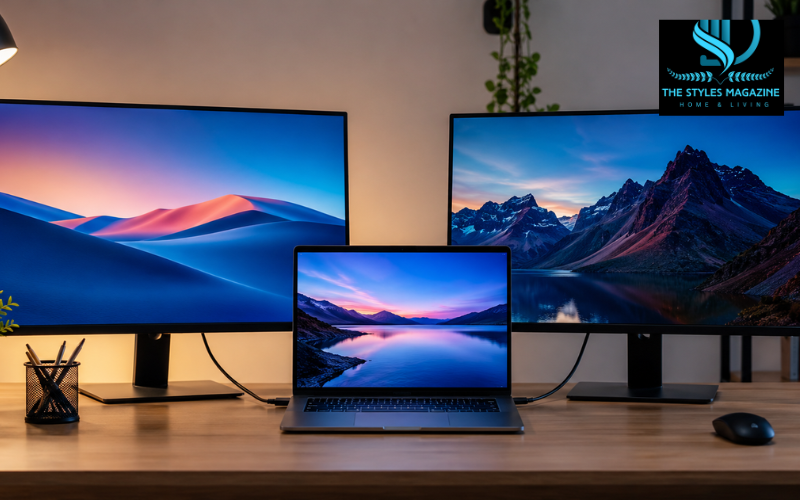
Identifies and selects two monitors for a laptop computer for use in everyday tasks. The first step if you are learning how to connect two monitors is determining what video port(s) your laptop will allow to help set up the connection. Multiple monitors on a laptop provide more screen space for documents, publishers, meetings, and other programs. The feature can be useful if you have multiple apps you regularly use.
Check the Ports on Your Laptop
Check out the laptop and monitor ports to plug in. You could find that you have to deal with a variety of different connection types when determining how you link two monitors, such as HDMI, DisplayPort, USB-C, Thunderbolt, and others. You’ll need to have as many external monitors as you wish. The number of screens that can be supported will depend on the laptop model, graphics, ports, and operating system.
Choose the Right Cables or Dock
After getting the desired cable, adapter, or docking station, the next step is to select an appropriate laptop multiple-monitor workspace. For instance, one monitor could be via the HDMI port, while another is via an HDMI-capable USB-C port or DisplayPort port. Depending on the laptop, a dock may be required to connect the laptop to a display that has an additional output. Make sure that the dock/adapter in question is capable of providing the video output and how many monitors you wish to use.
Connect Both Monitors
To learn how to connect two monitors, first make sure that each monitor is plugged into a video port suitable for the video card on your laptop/compatible dock. Power on the monitors and change the input source, if required. Once the screens are connected, your operating system might recognize both screens as it normally would. Before assuming that there is a hardware problem, see if one monitor will show up by ensuring the cable, input selection, adapter, and display settings are set correctly.
Adjust Your Display Settings
After you have the laptop multiple monitors setup connected, do the following: Arrange displays in the OS. Normally, you will have the ability to duplicate the very same content on several screens or extend your desktop. Generally, it’s more beneficial for productivity to extend the desktop, as each monitor gives more workspace. Place the virtual screens in the same order as your monitors are on your desktop.
Basic Items You May Need
There is no one-to-one relationship between the equipment that’s required and the connection method; obviously, not every laptop and monitor will have a connection that can be used. Make sure you know what kind of connections your laptop has before you buy adapters or docks, and also determine what the maximum number of external displays your laptop can support. Common items include:
- Two external monitors suitable for periodic replacement on a regular basis.
- Depending on the size of the screen, either HDMI, DisplayPort, or USB-C cables might be necessary.
- A compatible USB-C or Thunderbolt docking station (as necessary).
- Applicable video adapters of different connector types
- Extension cords for power to laptop, monitors, and dock
- Acuff features modern graphics drivers and OS software. Acuff has fresh graphics drivers and operating system applications.
Arrange the Monitors Comfortably
Once you’re familiar with connecting two monitors, take the time to arrange them where they fit, not where they’re convenient! Face your primary monitor head straight forward and the second monitor where you can easily see it. For third-screen use, position the laptop screen in the way you would like to work with it. Proper positioning will allow it to feel more natural to move windows from one screen to another.
Make the Setup Work for You
The ideal laptop dual-monitor setup should resonate with the type of work that you perform. You could have a primary screen up on which you are doing a main job, and another screen on which you are conducting research, checking your email, having a video call, or using reference material. If the three screens are available on the hardware, the laptop display can be used for smaller applications. Play around with screen positions, scaling, and resolutions to make visualizing text and applications comfortable.
FAQs
Can I Connect Two Monitors to Any Laptop?
Some laptop computers are not capable of dual-monitor mode. Some also have a number of external displays for which more than one is workable in one model / Hardware / port; some, less. Before purchasing cables or a dock for your particular type, check the specifications. External display support can be affected by the graphics hardware, operating system, and connection standard.
Do I Need a Docking Station for Two Monitors?
Docking stations aren’t always required, as some laptops will have sufficient compatible video outputs. Whereas a dock may be needed where your laptop just has limited ports to be able to attach additional monitors and accessories to it as well. Be sure to choose a dock that is capable of displaying the required number of external displays, resolutions, and Refresh rates.
Can I Use HDMI and USB-C at the Same Time?
This depends on the type of hardware: Many laptops can be used at the same time with both an HDMI cable and a video-capable USB-C connection. While USB-C is similar in appearance, not all of them are going to support video output. Look at the specs of your laptop to determine if its USB-C port can be enabled in DisplayPort Alt Mode or any other pertinent video standard.
Why Is My Second Monitor Not Detected?
First, check if the monitor is on and the right input source is set. Turn the display off and on and check the adapter/dock (if used). You can also adjust the settings of your computer display and configure its display detection (if possible).
Can I Use My Laptop Screen With Two External Monitors?
Yes, some laptops are compatible with two second monitors and can be set up to display 3 monitors. This depends on the graphics capabilities, connection, and maximum number of displays of the laptop. Some models can be configured with a suitable docking station, and some might not even be able to work with three screens.
Conclusion
These laptops offer the option of connecting 2 monitors, which will provide you with more space for your work, study, meetings, and daily multitasking. First off, you need to see what the laptop is capable of in terms of monitor support, monitor output, ports, and such. Select appropriate cables or a suitable docking station, plug both screens in, and adjust the settings. A well-organised system can facilitate the switching of applications, and your workspace can be more comfortable.
Enjoyed it? Find more exclusive content on The Styles Magazine.